
- News
- Technology News
- Tech News
- Google Gemini prompts to improve low-quality portraits: Step-by-step guide, prompts and quick tips
Trending
Google Gemini prompts to improve low-quality portraits: Step-by-step guide, prompts and quick tips

AI Generated
How to enhance image quality using Google Gemini prompts
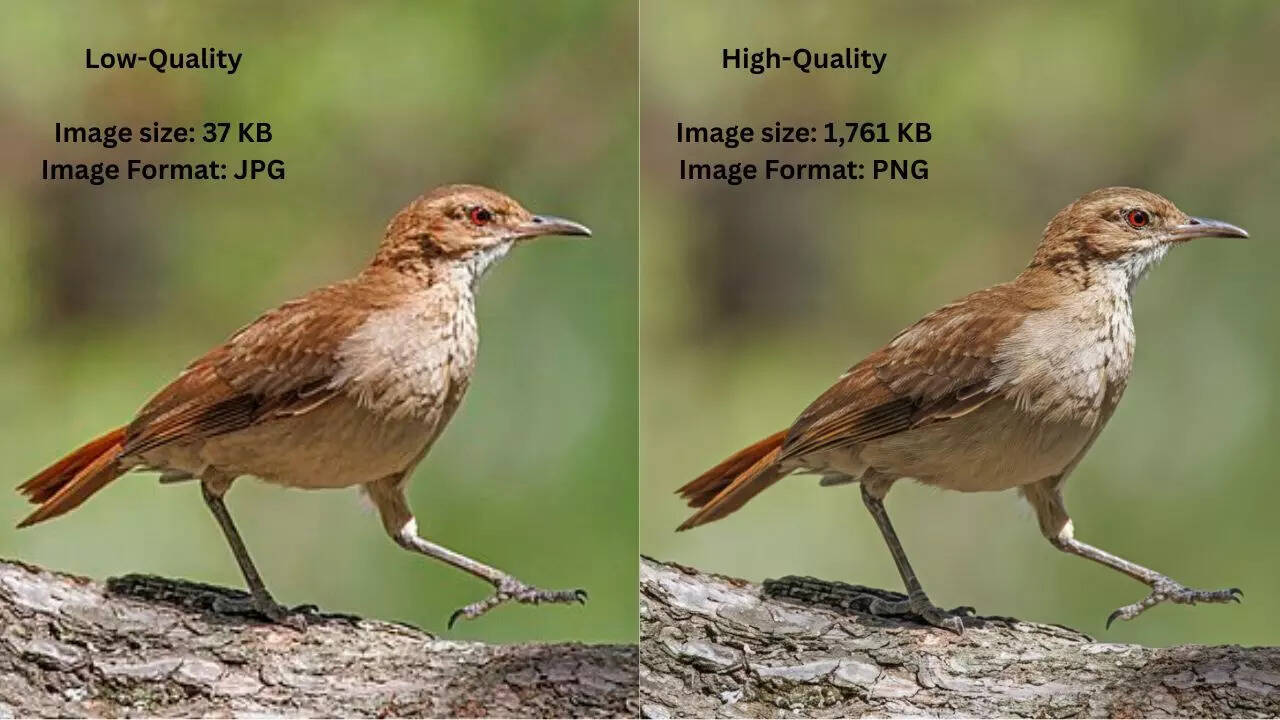
AI Gener

AI Generated
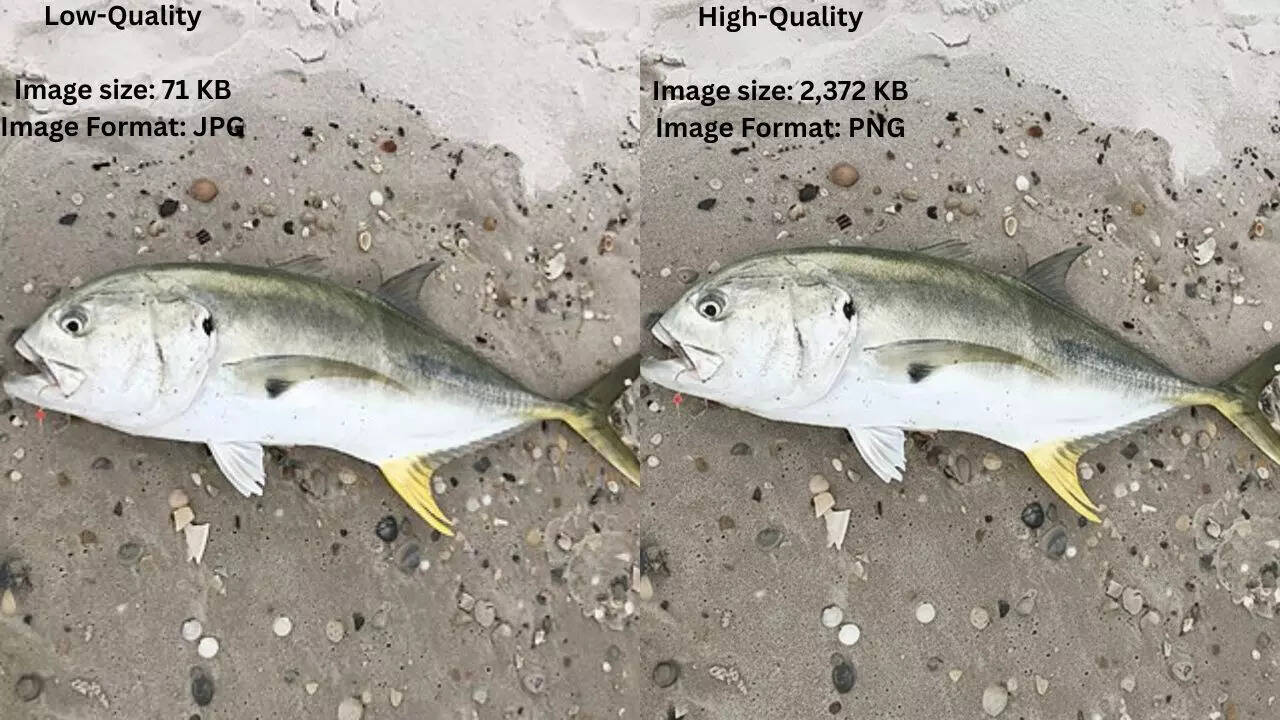
AI Generated
Quick tips to enhance the low image quality
- Keep prompts simple. Too many instructions can confuse the AI.
- Mention camera or lens details if you want a realistic, premium look.
- Be specific about lighting. Indicate angles, shadows, and mood.
- Avoid vague instructions like ‘make it pretty.’ Concrete guidance works best.
- Try small iterations. Adjusting contrast or minor feature cleanup can improve realism.

About the AuthorTOI Tech Desk
End of Article
Latest Mobiles









Follow Us On Social Media

Hot Picks
Top Trending
Tired of too many ads?go ad free now
Trending Stories
In Section
Entire Website
- How change in H-1B selection system has been a boon to employees already in the US whose companies opted to …
- Hack of the day: Save exactly where you parked
- Inside Google's stake worth $100 billion in Elon Musk's SpaceX
- Netflix founder Reed Hastings to exit board in June; says ‘Netflix changed my life…’
- Just weeks before big Siri launch, Apple may send away dozens of its engineers for a multiweek bootcamp
- Quote of the day by Anthropic CEO Dario Amodei: “No action is too extreme when the fate of humanity is at stake!”
- As Pentagon is planning to sign 'secret AI' deal with Google, the company makes it clear in the contract that ...
- US Expands Visa Restrictions: State Department widens Western Hemisphere policy
- Google AI CEO Demis Hassabis on why he refused to move to California from London after DeepMind was bought by Google in 2014: I wanted to show that ...
- Global DDoS-For-Hire Crackdown: Europol leads Operation PowerOFF; prevention phase ramps up
- US-Israel-Iran War News Live Updates: 'Discontinue transit to Iran', Trump shares US Navy video announcing Hormuz blockade
- CBSE Class 12 Result 2026 Live Updates: Result date, past trends, and how to check scores via DigiLocker, UMANG app, and SMS
- IPL: Prabhsimran, Shreyas power Punjab Kings to 7-wicket win over Mumbai Indians
- Nitish Kumar Reddy Interview: ‘I have overdone things… now I realise that’
- IPL 2026 | 'Aaj hi kiya hai na sir, kal kaha': Vaibhav Sooryavanshi's funny exchange with Romi Bhinder goes viral - WATCH
- IPL 2026 | 'I think my catch': Shreyas Iyer sums up Mumbai Indians' collapse in one line
- 0 wickets in 5 matches! What's really going wrong with Jasprit Bumrah in IPL 2026? - Explained
- "She no longer trusts.....": Blake Lively thinks she’s invited to Travis Kelce and Taylor Swift’s wedding but insiders say otherwise
- NFL Trade Rumors: New England Patriots reportedly "frontrunners" to acquire the $96M Philadelphia Eagles star
- What did Scott O’Neil say in leaked email that made fans fear Saudi Arabia could cancel $6 billion LIV Golf?
Tired of too many ads?go ad free now



Explore Every Corner
Across The Globe
US Iran War NewsCBSE 12 Result 2026Gold Rate TodayCrude Oil PriceTop Stock RecommendationsMI vs PBKS IPL HighlightsShreyas IyerHulk HoganVaibhav SooryavanshiJasprit BumrahMeenu BatraIPL 2026Amravati Sexual Abuse CaseNitish ReddyHSSC CET resultEasyJet flightUK Pension Schemes BillSamruddhi ExpresswayStock market todayPrabhsimran SinghIPL 2026 Orange CapEngineer RashidPriyanka GandhiRyan Lochte DivorceRick Bowness Blue Jackets CoachPokimane Valkyrae BacklashVitaly StreamIPL 2026 Points TableIPL 2026IPL Schedule 2026

Hot on the Web
Bhoot Bangla ReviewSocrates QuoteShatrughan SinhaAjay Devgn HouseSavita PradhanKangana RanautBhooth Bangla ReviewLaughter Chefs 3Old Pakistani InterviewToaster Movie ReviewLIK CollectionCharlie Sheen QuoteChemically Ripened BananaDacoit Box Office CollectionJana NayaganCeiling FanSocrates QuoteDhurandhar 2 Box Office CollectionBaby NamesHanshika MotwaniShatrughan SinhaMona SinghYaseen KhanJonny KimMatka King Season 1Juliane KoepckeDhurandhar 2 ReviewDhurandhar 2 CollectionMovierulzHoroscope TodayToday Gold Rate in ChennaiDelhi Weather TodayDelhi AQI TodayMumbai AQI TodayMaharashtra Public Holidays 2026Snap LayoffMackenzie ScottDemis HassabisMichael DellVinod KhoslaKing Legacy Codes
Trending Topics
Patriots Eagles Trade RumorsTaylor Swift Travis Kelce WeddingBills Defensive End Trade RumorsVictoria Beckham Brooklyn FeudLIV Golf Saudi CancellationMike Vrabel Patriots Exit RumorsIga SwiatekGreen CardMeenu BatraCanada Student VisaJustin Fairfax Murder SuicideVitaly Pedophile Accusation CaseVitaly StreamPokimane Valkyrae BacklashRyan LochteRick BownessSykkuno Breakup StatementStephen Curry Sneaker AuctionCraig Berube Leafs ApologyIga SwiatekPriyanka GandhiEngineer RashidTCS Nashik Conversion CaseModi Trump CallGiants Bears TradeSabalenka Gauff Net WorthSneako Livestream AttackAgassi Steffi Graf MomentClavicular Overdose ControversyJaguar GEN4 PrototypeSam AltmanElon MuskMark ZuckerbergJensen HuangJim FarleyAnthropic MythosGarena Free Fire Max Redeem CodesNyt ConnectionsScience NewsHow to watch ICC T20 World Cup 2026 in USAIPL 2026IPL Schedule 2026
Popular Categories
HeadlinesSports NewsBusiness NewsIndia NewsWorld NewsBollywood NewsHealth+ TipsIndian TV ShowsTechnologyTravelEtimesHealth & FitnessAstrologyInternational SportsDeorhiTechnology NewsAutoWeather TodayGold Rate Today DelhiSilver Rate TodayPlatinum Rate TodayIs Bank open todayVirat Kohli IPL StatsHardik Pandya IPL StatsBank HolidaysPublic HolidaysBank Holidays AprilPublic Holidays AprilAries HoroscopeGemini Horoscope
Latest News
Hazaribag man drowns while fishing in lake"Behen Darr Gayi!": Fans relive ‘Bhagam Bhag’ era after watching Akshay Kumar's 'Bhooth Bangla' trailerMBOSE HSLC result 2026 to release tomorrow: Check details hereIran war risk: JPMorgan CEO Jamie Dimon warns of oil shocks, sticky inflation and higher interest ratesMake your clutch last longer with these easy driving tips“Three-against-one situation”: El Rubius opens up on being “targeted” in MrBeast’s viral $1M challengeBihar BTSC lab assistant notification released for 1091 posts at btsc.bihar.gov.in; apply hereIPL craze costs techie Rs 1.46 lakh in fake RCB vs CSK ticket scamRaising “robot-proof” kids: Why creativity and curiosity matter more than everInside ‘Satguru Sharan’: Exploring Saif Ali Khan and Kareena Kapoor Khan’s Rs 100 crore Bandra homeHow selling Alaska in 1867 was a costly mistake for Russia'Hera Pheri 3 is coming': Paresh Rawal dismisses delay reports and reveals he will 'start shooting soon'US-Iran War: A daring rescue Hollywood blockbuster is on its way. Till then, pick your favourite from these 10 films on bringing someone home against all oddsKolkata team unveils fan mural at Rash Behari Avenue, celebrating city’s first loveHow US spread a lie to rescue a pilot of a jet shot down in IranNetflix unveils ‘VOID’, an AI model that can change a movie plotAI data centers are causing 'stress' not just to tech companies, but also private insurers"Trans women are.....": Clavicular’s viral moment with trans women sparks fresh conversation on internet culture
Copyright © 2026 Bennett, Coleman & Co. Ltd. All rights reserved. For reprint rights: Times Syndication Service